Select Students from the Jump to Module pull-down list in the upper right corner.
Select Grade
Book from the Grades menu, and that
window opens displaying the Attendance tab.
Note: The Scheduled column displays the attendance model designated
in the Grading Calendar.
Change the Attendance date if you want to enter attendance for a date previous to today’s date. Note: You can only change the attendance date if an administrator has designated the Grade Book backdating window as greater than zero.
If needed, select the period from the Attendance for drop-down list.
This field defaults to what the system thinks is the current period based on the beginning and ending times of the period.
If the period is the one designated for ADA attendance, you’ll see a small ADA in the Attendance Coding column, and the attendance marked in this course will also create the ADA attendance record.
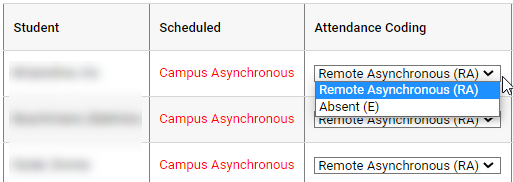
Select the attendance
codes for the students. The
illustration below includes the Remote Asynchronous and Absent codes.
When finished entering
codes, click  Submit Attendance. Note:
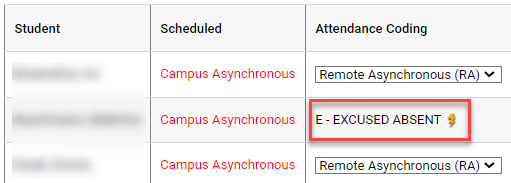
When the remote asynchronous option is available, a lightning bolt
is displayed by the Absent code.
Submit Attendance. Note:
When the remote asynchronous option is available, a lightning bolt
is displayed by the Absent code.
Note: If students are marked as absent, but then later log into
the class, the teacher can change the attendance codes from Absent
to Remote Asynchronous by clicking
the lightning bolt icon. When asked to confirm the action, click OK.
 Version 3.8 © 2023 - Harris School Solutions - All rights reserved